Third-party emote setup
How to Add 7TV Emotes to Twitch: Extension, Emote Sets, and Channel Setup
A practical guide to installing the 7TV extension, choosing an emote set, adding emotes to a channel, and checking what viewers can actually see.
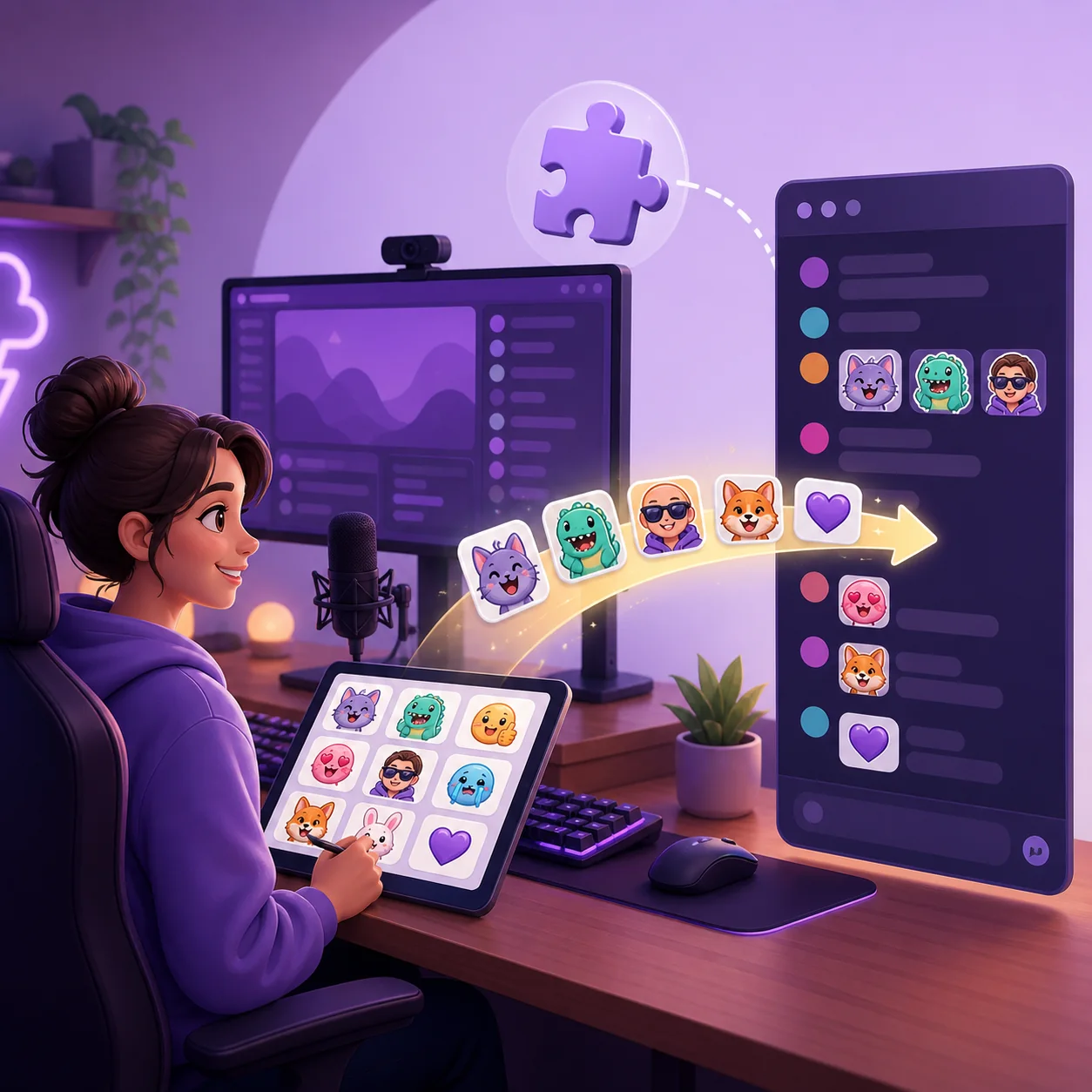
1. Understand what 7TV adds to Twitch
7TV is a separate emote service that works alongside Twitch. It gives creators and communities a larger, more flexible emote catalog than the native Twitch slot system, while viewers use a compatible browser extension to render those emotes in chat. That makes the setup useful for community reactions, shared sets, and fast experiments, but it also creates one extra compatibility step.
Keep the boundary clear before you start. A native Twitch emote is uploaded in Twitch's Creator Dashboard and follows the channel's native audience and slot rules. A 7TV emote is managed through 7TV's service and its channel or emote-set controls. The two systems can sit beside each other, but one does not become the other just because the emote appears in a Twitch chat window.
| Emote type | Where it is managed | Who can see it |
|---|---|---|
| Native Twitch emote | Twitch Creator Dashboard | Viewers allowed by the native slot or channel rule |
| 7TV emote | 7TV emote set and channel controls | Viewers with a compatible 7TV setup |
| Shared emote-set asset | The 7TV set where it is published | Channels and viewers that use the set |
2. Install the official 7TV extension
Start at the official 7TV website and use its current browser-install path. The exact store button or browser wording can change, so avoid third-party download mirrors and do not install a lookalike extension from an unrelated publisher. Chrome-family browsers and Firefox have separate installation surfaces; use the one that matches the browser where you watch Twitch.
After installation, open Twitch in a fresh tab and confirm that the extension is active. You may see a new 7TV control in chat or in the browser extension area. If the control is missing, check the browser's extension permissions, refresh Twitch, and make sure the extension is enabled for the Twitch site. Keep the official 7TV page bookmarked so you can compare the current instructions when the browser UI changes.
- Open the first-party sourceUse the official 7TV site or its linked browser-store listing, not a reposted extension file.
- Choose your browserSelect the Chrome-family or Firefox installation path that matches your everyday Twitch browser.
- Review permissionsCheck the publisher, requested permissions, and browser confirmation before adding the extension.
- Refresh TwitchReload an open Twitch tab and look for the 7TV controls in chat or the extension menu.
3. Choose or create a 7TV emote set
An emote set is the working collection that holds the reactions you want to use together. You can browse a set shared by another creator, join a community set when the service allows it, or create your own set for a channel identity. Start with a small group of reactions that viewers will actually type instead of importing every interesting image you find.
For each emote, check the artwork, name, and usage context before you add it. A short name is easier to remember, while a crowded or confusing set makes chat commands harder to use. Keep a local copy of any artwork you own and record the creator or license information for community assets; extension availability is not proof that you can redistribute the source file elsewhere.
| Set choice | Best when | Watch out for |
|---|---|---|
| Your own set | You want consistent branding and predictable names | Keep source files and permissions organized |
| A community set | Your viewers already recognize the shared reactions | The set owner can rename, remove, or restrict an emote |
| A temporary test set | You are comparing a few reactions before launch | Do not treat a test set as a permanent channel library |
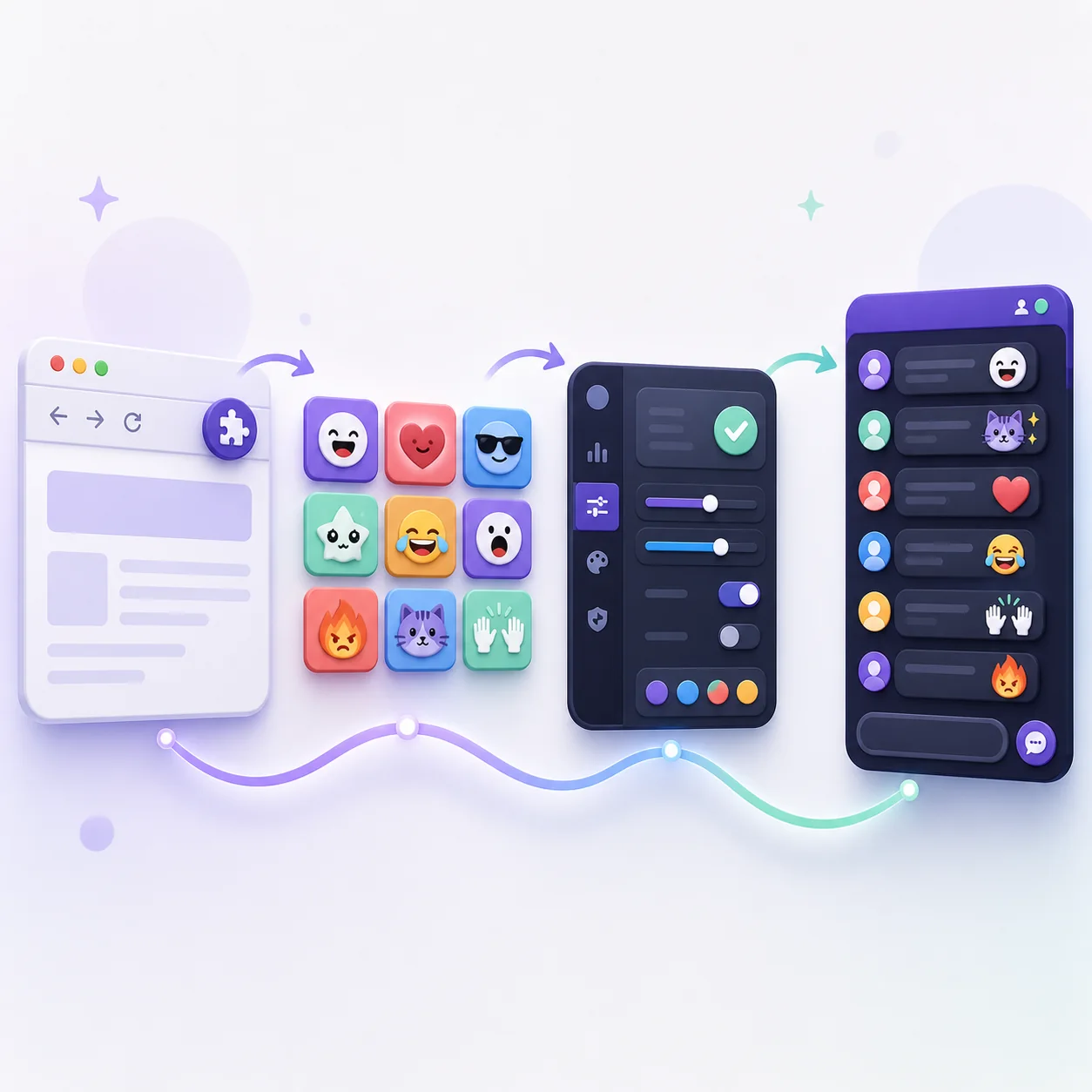
4. Add the 7TV emotes to a channel
Open 7TV's current channel or emote-set management area and select the channel that should use the set. The labels may move as 7TV updates its interface, but the decision is the same: choose which emote set is attached to the channel, then choose the emotes and names that should be available there. If you manage more than one channel, confirm the channel identity before saving.
When the service shows an add, enable, or save control, use it once and wait for the change to propagate. A successful save in 7TV does not mean the native Twitch Creator Dashboard has gained a new slot. It means that 7TV has updated the extension-side channel configuration. If an emote is already in a different set, read the warning before moving it because the change may affect other channels that use the same set.
- Confirm the channel name or account before changing a set.
- Use a unique, readable emote name rather than a long sentence.
- Keep the set small enough that the team can remember its most useful reactions.
- Wait for the save to finish before changing a second emote.
- Treat 7TV set limits and permissions as service-specific, not as Twitch slot counts.
5. Test the emote as a viewer
Testing from the creator account alone can hide the real problem. Open a Twitch chat where the channel uses the 7TV set, type the exact emote name, and look at the result at normal chat size. If you can, ask a second viewer to check from another browser profile or device. This separates a channel configuration issue from a local extension issue.
A useful test checks four things: the emote name is accepted, the image renders instead of showing plain text, the art is recognizable at chat size, and a viewer without 7TV is not being promised the same experience. If you are also using native Twitch emotes, test both systems separately so a familiar native emote does not give a false impression that the 7TV setup is working.
| Test | Expected result | If it fails |
|---|---|---|
| Exact name | The chosen name is accepted in chat | Check spelling, capitalization rules, and the current set |
| Extension enabled | The image appears instead of plain text | Check browser permissions and reload Twitch |
| Small-size readability | The reaction is clear beside a message | Simplify the source and resize it again |
| Second viewer | Another compatible viewer sees the same emote | Check channel association and propagation time |
6. Fix missing 7TV emotes and conflicts
Most missing-emote reports come from one of three boundaries: the channel is not using the set you edited, the viewer does not have a compatible 7TV setup, or the browser has not refreshed the extension state. Start with the smallest check instead of reinstalling everything. Confirm the channel, set, emote name, and browser extension in that order.
If the image appears but looks soft, the problem is usually artwork preparation rather than 7TV. Keep the main shape large, remove tiny text, use strong contrast, and inspect the smallest Twitch emote preview before you add it. The resizer can create the standard native preview files, but it cannot make a detailed illustration readable without simplifying the source.
| Symptom | Likely cause | Next check |
|---|---|---|
| Plain text in chat | 7TV is disabled, unavailable, or the tab is stale | Enable the extension and refresh Twitch |
| Only one browser sees it | Local extension or permission difference | Compare browser profiles and site permissions |
| Creator changed a set but chat did not | Channel association or propagation delay | Reopen the channel controls and test again |
| Image is blurry | Too much detail or weak contrast | Simplify the artwork and check a small preview |
| Native slot is missing | 7TV is not a Twitch native slot | Use Twitch's own dashboard for native emotes |
7. Know when to use 7TV and when to use native Twitch emotes
Use 7TV when you want a flexible extension-based emote library, community set, or channel reaction system that can change without consuming native Twitch slots. Use native Twitch emotes when the emote must be managed by Twitch's Creator Dashboard and available according to Twitch's own follower, subscriber, or channel rules.
Many channels use both. Keep the naming and artwork style consistent, but label your planning sheet with the destination system. That small habit prevents a common mistake: preparing a perfect image and then assuming it can be uploaded into the wrong dashboard or seen by every viewer.
- 7TV is an extension workflow, not a replacement for Twitch's native emote inventory.
- Native Twitch upload questions belong in the Creator Dashboard guide.
- Use the same small-size readability check for either system.
- Tell collaborators which assets are native, 7TV, or shared across another service.
How to Add 7TV Emotes to Twitch FAQ
How do I add 7TV emotes to Twitch?
Install the official 7TV extension, open or create a 7TV emote set, attach the set to the correct channel in 7TV's current controls, and test the emote in Twitch chat with the extension enabled. The exact labels can change, so use the current 7TV interface as the final step-by-step reference.
Do viewers need the 7TV extension to see the emotes?
Usually, viewers need a compatible 7TV setup for the extension emote to render in Twitch chat. Do not promise that a 7TV emote will appear for every viewer in the same way as a native Twitch emote.
Are 7TV emotes part of Twitch's native emote slots?
No. 7TV emotes use a separate service and extension-side configuration. They should not be counted as native subscriber, follower, or animated Twitch slots.
Can I change a 7TV emote name?
The available name and edit controls depend on the set and permissions shown by 7TV. Choose a short readable name, check whether the emote is shared, and read the warning before changing a name that other channels may use.
Why can I see a 7TV emote but my viewer cannot?
The viewer may not have the compatible extension, may be using a stale Twitch tab, or may be looking at a channel that is not associated with the same set. Compare the channel, set, browser permissions, and exact emote name.
Can I use 7TV emotes in the Twitch mobile app?
Do not assume that a desktop browser extension workflow carries over to every Twitch mobile app view. Test the exact viewer surface you care about and describe 7TV emotes as extension-dependent rather than universally available.