Fix files that are too large
A Twitch emote can become too large when the image contains many colors, soft gradients, shadows, texture, or unnecessary transparent space. Resizing alone may not solve every file-size problem, but it removes the most common dimension mismatch first.
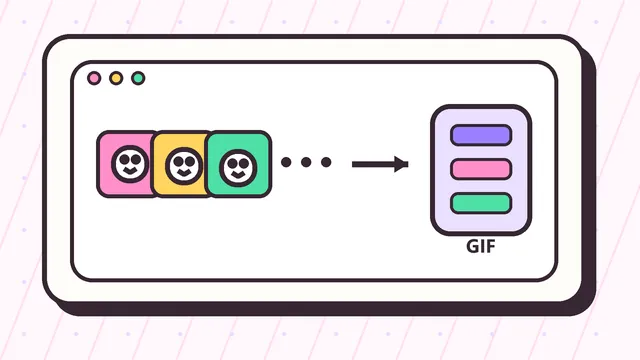
If the generated PNG is still heavy, simplify the original artwork. Remove subtle texture, reduce complicated shadows, and use cleaner shapes. For animated GIFs, reduce frame count and shorten the loop.
Fix wrong dimensions or shape
Twitch emote uploads expect square artwork. If your file is rectangular, use the Twitch emote resizer's fit mode to add transparent padding or crop mode to fill the square.
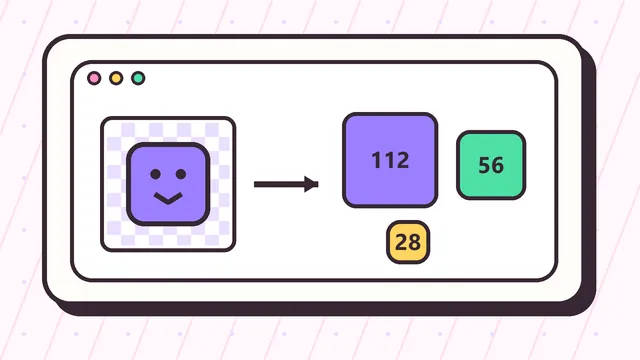
Make sure you upload each file to the right slot. The classic manual set is 112x112, 56x56, and 28x28. Badge files are different, so do not upload 72x72 badge files as emotes.
Fix blurry or unreadable emotes
If Twitch accepts the file but the emote looks bad in chat, the source design is probably too detailed. At 28x28, viewers need a bold silhouette and clear expression.
Try a tighter crop, thicker outlines, fewer words, and more contrast between the subject and transparent edge. Preview the 28x28 output before uploading again.
Example Twitch emote upload fix workflow
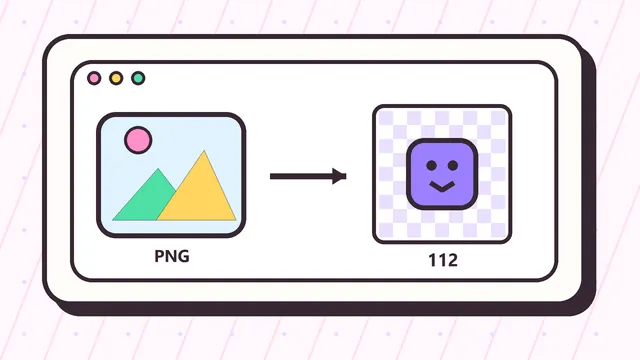
A practical Twitch emote upload fix workflow starts by identifying the exact failure. If Twitch says the dimensions are wrong, regenerate the 112x112, 56x56, and 28x28 files with the tool above. If the upload is accepted but the result looks unreadable, the source art needs design changes before another resize.
For example, a reaction face with soft shadows may look good at 1000px but fail in chat. Upload the source, crop closer, check the 28x28 preview, and download a new ZIP. If the output is still blurry, simplify the face, increase outline weight, and remove small background details.
Fix transparency and format problems
Some rejected or ugly emotes come from the wrong format. JPG removes transparency and can leave a square background around the artwork. PNG is usually better for static Twitch emotes because it preserves transparent edges and cleaner linework.
If your transparent emote shows a strange border, return to the original art file and check the edge pixels. Semi-transparent shadows, leftover background fragments, and soft halos can become obvious once the emote is placed on dark or light chat themes.
When resizing is not enough
A Twitch emote upload fix can solve square canvas issues, wrong pixel dimensions, and many file-size problems. It cannot automatically make a complex design readable. If the smallest output does not work, the source concept needs to be simpler before the upload will feel polished.
Use the tool above as a diagnostic step. Generate fresh files, check the size table, preview the chat result, and compare the error with the troubleshooting table. Then decide whether the right fix is resize, crop, format change, compression, or a source-art revision.
Keep a clean replacement set
Once a Twitch emote upload fix works, keep the accepted files together in one folder or ZIP. This prevents mixing an old rejected 56x56 file with a new 112x112 file during another upload attempt. Consistent file names also make it easier for a moderator or channel manager to choose the right slot.
If Twitch rejects the file again, compare only one change at a time. Regenerate exact sizes first, then adjust format, then simplify the artwork. A careful Twitch emote upload fix process is faster than guessing several changes at once.