Twitch emote workflow
How to Make Twitch Emotes That Read Clearly at 28×28
A practical workflow for planning a reaction, drawing a clean master, exporting 112/56/28 PNGs, and checking the result before upload.
1. Plan an emote people can read instantly
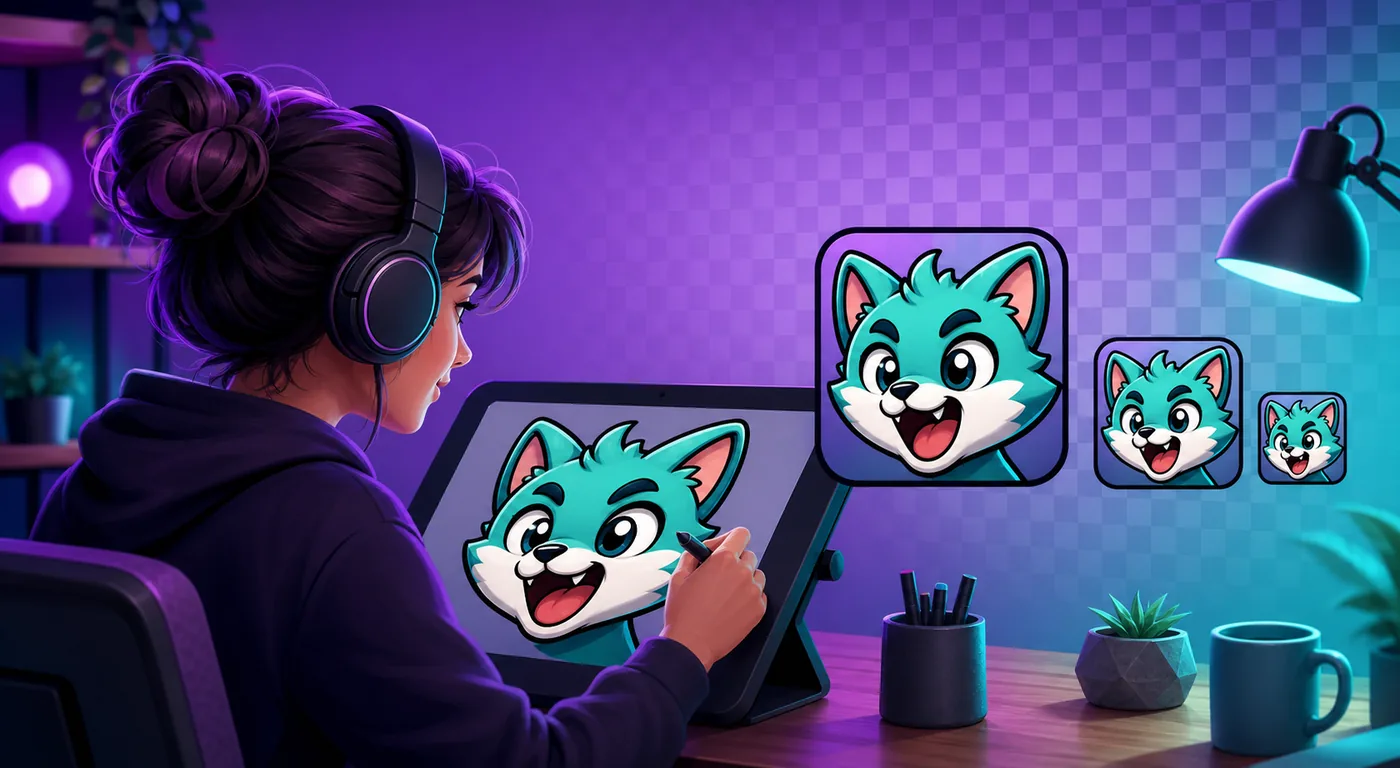
The strongest Twitch emotes communicate one reaction in less than a second. Choose a single emotion or action—laughing, hype, shock, agreement, or a recognizable channel joke—and remove objects that do not help that message.
Build a small set around repeatable viewer moments instead of drawing unrelated art. A useful first set might cover greeting, celebration, laughter, surprise, and support. Give every emote a different silhouette so viewers can distinguish them before reading facial details.
- Use one focal character or object.
- Push the eyes, mouth, hands, or motion that carries the reaction.
- Keep important shapes away from the outer edge.
- Avoid thin props and tiny lettering that vanish in chat.
2. Draw on a large square canvas with transparency
Work on a square canvas such as 1000×1000 or 2000×2000 pixels. The exact master size matters less than clean edges, separate layers, and enough room to edit. Keep the background transparent unless the background shape is intentionally part of the emote.
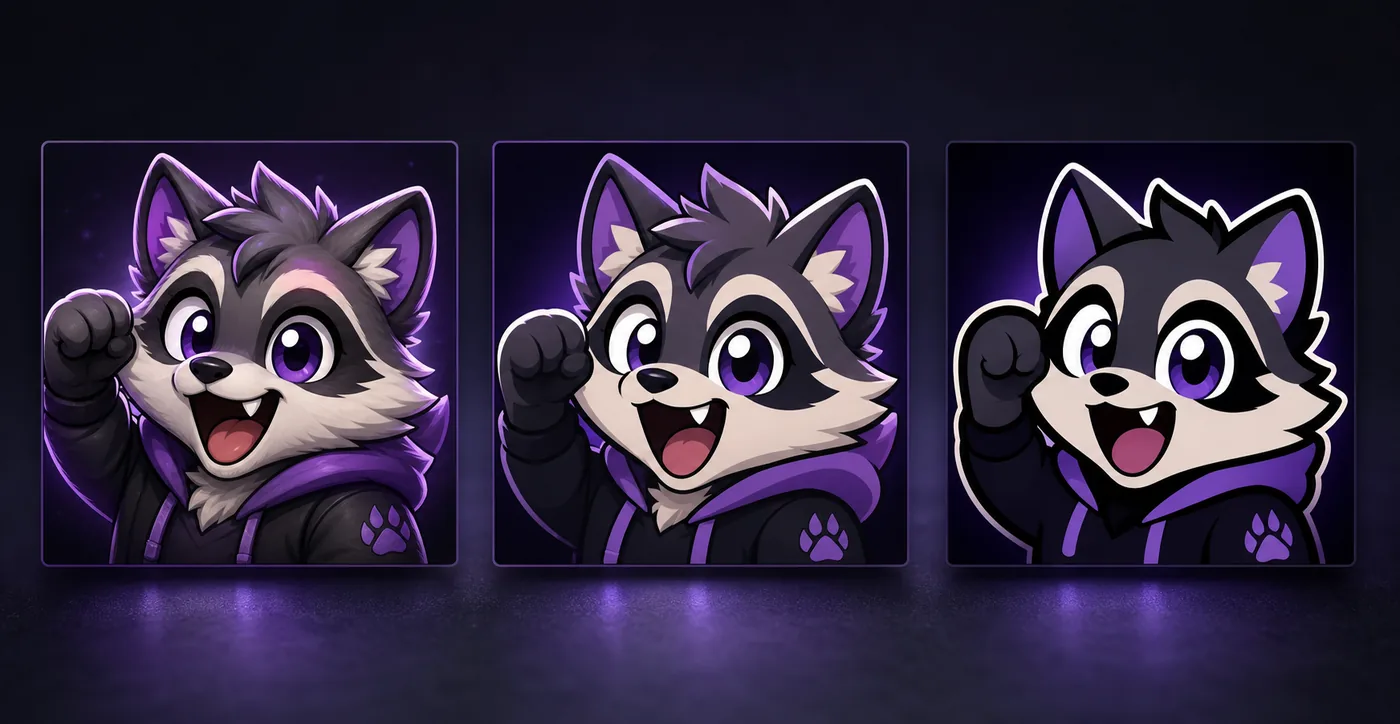
Use a bold outer contour or a clear light/dark edge when the character could blend into Twitch chat themes. Check the artwork against both dark and light backgrounds while drawing.
- Block the silhouetteZoom out and make sure the pose is understandable before adding details.
- Exaggerate the expressionIncrease the size of the eyes, mouth, brows, or gesture that carries the emotion.
- Clean the edgeRemove stray pixels and soft halos around transparent areas.
- Save the masterKeep a layered source file before creating flattened upload files.
3. Simplify until the emote survives at 28×28
Small-size readability is the main design test. Details that look impressive on a drawing tablet can collapse into noise in chat. Preview the artwork at 28×28 throughout the process, not only after the illustration is finished.
If the tiny preview is unclear, enlarge the face, thicken the outline, remove texture, separate overlapping shapes, and increase contrast between neighboring colors.
4. Export the correct Twitch emote files
Keep your high-resolution master, then make the upload versions from that source. Export static artwork as PNG when transparency matters.
Use a clean square crop and avoid stretching a non-square design because it distorts faces and logos.
| File | Purpose | What to check |
|---|---|---|
| 112×112 PNG | Largest standard file | Clean edge and balanced crop |
| 56×56 PNG | Mid-size display | Expression remains obvious |
| 28×28 PNG | Chat-size stress test | Silhouette and face remain readable |
Example: how to make a Twitch emote from one reaction
Suppose the emote should communicate a quick celebration. Start with one raised hand, an exaggerated face, and a silhouette that remains distinct without text. Draw the master large, remove background details, and test the expression at 28×28 before polishing the full-size art.
If the small preview loses the reaction, change the design rather than only increasing sharpness. A tighter crop, stronger outline, brighter face, or simpler gesture usually helps more than another export setting.
| Checkpoint | What to do | Pass signal |
|---|---|---|
| Idea | Choose one emotion or action | A viewer can name it quickly |
| Master | Use a square transparent canvas | The silhouette has room around it |
| 28×28 | Inspect the smallest PNG first | Face and gesture still read |
| Upload set | Export 112×112, 56×56, and 28×28 | Each file matches its slot |
5. Resize without making the artwork blurry
Resize from the largest clean master instead of repeatedly shrinking an already reduced file. Generate each output directly from the source so errors do not accumulate.
Use fit with transparent padding when the full silhouette must remain visible. Use a square crop when the face is the important part.
Convert an image into Twitch-ready emote files6. Check the files before uploading to Twitch
Open every exported file on both a light and dark background. Confirm that transparency is real, the crop is centered, and no halo surrounds the artwork.
Upload access and review options can vary by account, so use the current Creator Dashboard instructions as the final authority. If a file is rejected, check dimensions, format, transparency, animation limits, and file size.
Troubleshoot a rejected Twitch emote upload7. Make animated emotes from the same readable idea
An animated emote still needs a strong static pose. Start with a key frame that communicates the reaction by itself, then add a short loop that reinforces the idea.
Preview the animation at chat size and reduce frames or motion complexity if the result looks muddy or creates a large file.
Learn how to make animated Twitch emotesFrequently asked questions
What size should I draw Twitch emotes?
Draw on a large square canvas, often 1000×1000 pixels or larger, then export the required small files from that master.
Can I make Twitch emotes from a photo?
Yes. Crop around one clear face or object, remove the background, simplify small details, and increase contrast before resizing.
Should Twitch emotes have text?
Usually no. Short lettering can work when it is thick and central, but complete words often become unreadable at chat size.
Why does my emote look blurry at 28×28?
The source may contain too much detail, thin lines, low contrast, or a loose crop. Simplify the artwork first.
Do I need different art for every size?
Usually one master is enough, but the smallest version may benefit from manual simplification.
How do I make my own emotes for Twitch?
Choose a reaction, create a square master with transparency, simplify it for 28×28, and export the 112×112, 56×56, and 28×28 PNG set. Keep the smallest version as the design test.
Can I make animated emotes for Twitch?
Yes, but begin with a static key frame that works at chat size. Add a short loop afterward and reduce frames or motion when the animation becomes confusing or too heavy.