Subscriber badge guide
Twitch Sub Badges: Sizes, Design, and Upload Guide
Plan a recognizable subscriber badge family, prepare the right files, and check the smallest chat version before you upload it to Twitch.
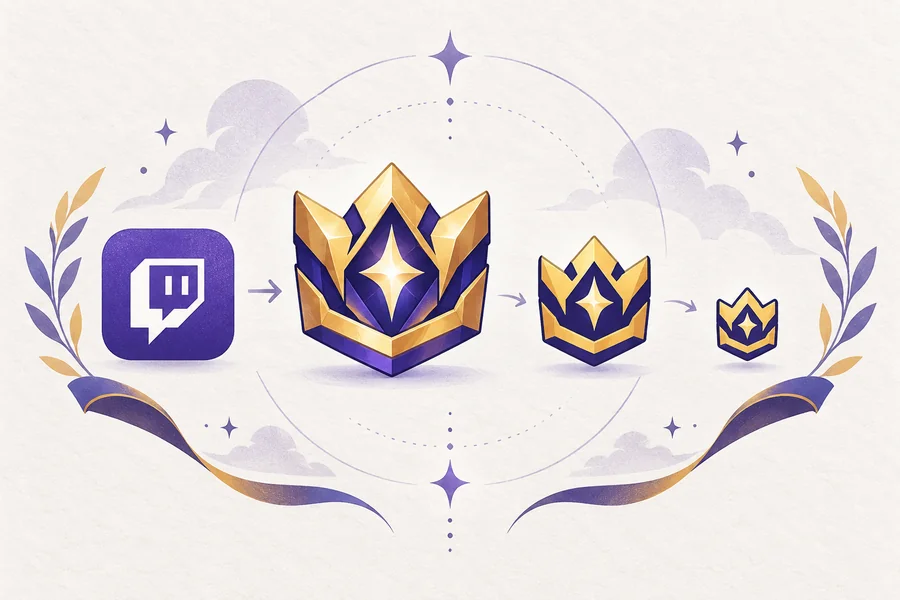
1. What Twitch sub badges are used for
Twitch sub badges are loyalty markers beside a subscriber's name in chat. They can show support time, reflect a mascot or game theme, and create a visual progression from a simple first-month icon to a long-term badge. Unlike emotes, a badge must read in a narrow space beside text.
A good set lets viewers recognize the channel family and distinguish tiers without reading a tiny label. A crown, gem, star, shield, fruit, animal face, or letter mark can work when the main silhouette stays consistent. Change one or two clear details instead of redesigning every month.
- A badge is an account or channel asset, while the file dimensions are the export sizes used by the upload workflow.
- Subscriber, moderator, VIP, founder, and other badge categories are not interchangeable; confirm which control you are editing.
- A badge should remain legible on dark and light chat backgrounds, especially when transparency is part of the design.
- Do not promise a fixed number of badge slots from an old tutorial; use the current Creator Dashboard for availability.
2. Twitch sub badge size: 72x72, 36x36, and 18x18
The common native subscriber-badge export set uses 72x72, 36x36, and 18x18 pixel square files. The largest version gives the artwork room to keep a little texture, the middle version exposes weak spacing or thin strokes, and the smallest version is the real readability test. Treat the three files as one badge workflow rather than three separate designs.
Start with a clean square master file that has enough margin for the shape to breathe. Then compare the result at each output size. If the icon becomes a colored blob at 18x18, remove internal lines, enlarge the main shape, strengthen the outline, or simplify the color blocks. Enlarging a blurry source will not create detail; it only makes the blur easier to see.
| File size | What viewers need to see | Design check |
|---|---|---|
| 72x72 | The full badge idea and the main color relationship | Keep the silhouette clean; avoid texture that will disappear later. |
| 36x36 | The tier shape and one recognizable accent | Check line weight, spacing, and contrast against chat colors. |
| 18x18 | The badge family and the basic tier cue | Remove tiny text, thin borders, and decorative marks that turn into noise. |
3. Plan a Twitch subscriber badge family before drawing
Plan the progression before drawing. Note the channel theme, expected tiers, and one visual change that communicates growth. The base badge might use a purple outline, the next a gold center, and a later tier one star while the shape and border stay stable.
Avoid month names and long words. Text that looks clear on a 512-pixel canvas can disappear at 18 pixels. If a tier needs a number, use a simple mark and keep the silhouette dominant. A repeated shape with changing color is often easier to read than tiny text.
- Choose one base silhouettePick a crown, gem, shield, mascot face, or other shape that remains recognizable when it is tiny.
- Define the progressionChange one strong attribute at a time, such as color, a center symbol, or a single border accent.
- Reserve the smallest testPreview the planned set at 18x18 before polishing details that may never survive the upload size.
- Keep a source folderStore the master art, exported files, license notes, and the date you checked Twitch's rules together.

4. Create badge artwork that survives chat size
Use a square canvas with generous shapes. Thick outlines, two or three main colors, and a clear center survive better than gradients, tiny highlights, or detailed lettering. Keep the background transparent for clean placement beside a username, then test the art on light and dark chat themes.
Design around the smallest meaningful feature first: a clear crescent for a moon, a face outline for a mascot, or one symbol for a rank. Add polish at 72x72 only after the key idea already works at 18x18.
- Use a strong silhouette with enough empty space between internal shapes.
- Avoid long words and hairline strokes; they become unreadable or create noisy pixels.
- Check contrast against both dark and light backgrounds before you commit to a color pair.
- Keep every tier on the same square canvas so the family aligns consistently in chat.
- Export from the clean master instead of repeatedly resizing an already compressed file.
5. How to upload Twitch sub badges safely
Open the current Creator Dashboard and locate the badge area for the audience or tier you want to edit. Labels and eligibility can change, so the live dashboard is more reliable than an old screenshot. Choose the category, upload the matching file, and review the preview before saving.
Keep the tier and source filename organized. Avoid uploading the right art to the wrong tier or checking only the large file. After saving, view the badge beside a username or ask a moderator to check it. If the control is missing, investigate access or account state instead of repeatedly changing the image.
- Confirm the badge categoryCheck whether the control is for subscriber, founder, animated, moderator, VIP, or another supported badge type.
- Choose the matching tierRead the tier or loyalty label before selecting the 72x72, 36x36, and 18x18 export set.
- Upload and previewReview the preview, transparency, contrast, and smallest visible version before saving.
- Test the live appearanceCheck how the badge sits beside a username and keep a note of the date and file used.
6. Common Twitch sub badge problems and fixes
A missing badge control and a rejected file are different problems. If the category is absent, check channel status, audience, and current Twitch guidance. If the control exists but upload fails, inspect dimensions, format, transparency, file size, and whether an emote workflow was selected by mistake.
Blurry results usually start in the source concept. Detailed art, narrow lettering, or a low-resolution screenshot will not become sharp at 18x18 by changing the export number. Simplify the master artwork and compare all three outputs again.
- Badge control missing: verify account access, category, tier, and the current dashboard state.
- File rejected: confirm the current format, square dimensions, transparency, and size rules shown by Twitch.
- Badge looks like a dot: crop excess margin, enlarge the main shape, and remove internal detail.
- Tier looks confusing: keep the outer silhouette stable and change only one clear progression cue.
- Badge looks wrong in chat: test a dark and light background and inspect the 18x18 version again.
- Third-party badge or extension asset: follow that service's upload rules instead of mixing it with native Twitch files.
7. Keep your badge set maintainable and properly licensed
Keep the original source and a simple naming system because a badge set may stay in use for years. Folders such as `badges/source`, `badges/72`, `badges/36`, and `badges/18` make tier updates safer. Put the tier and revision date in filenames, not as long text inside the art.
For commissioned, downloaded, or adapted art, confirm that the license covers a monetized Twitch channel, edits, and tier variants. Store the receipt, permission, or license page beside the source. Free does not automatically mean unrestricted.
| Keep with the source | Why it matters | Simple habit |
|---|---|---|
| Master artwork | Lets you simplify or recolor a tier without quality loss | Save the editable source before exporting PNG files. |
| License or permission | Shows that the channel can use and modify the art | Store the URL, receipt, or written permission beside the file. |
| Export date and tier | Prevents the wrong version from being uploaded | Use clear filenames such as `badge-tier-2-72.png`. |
| Small-size preview | Catches unreadable shapes before viewers see them | Keep an 18x18 preview in the review checklist. |
Twitch sub badges FAQ
What size are Twitch sub badges?
The common native subscriber-badge export set is 72x72, 36x36, and 18x18 pixels. Check the current Twitch upload guidance and your Creator Dashboard because category rules or controls can change.
How do I make Twitch sub badges that are readable?
Start with one bold silhouette, use limited colors, avoid long text, and test the artwork at 18x18 before adding detail. The smallest version should still show the channel family and the tier cue.
Can I use the same image for emotes and sub badges?
You can adapt the same idea, but badges are smaller and sit beside a username. Simplify the artwork and export the badge sizes separately rather than assuming an emote file will read well as an 18x18 badge.
Why is my Twitch subscriber badge blurry?
The source may be too detailed, too small, or surrounded by too much empty margin. Simplify the silhouette, crop closer, strengthen the outline, and compare the 18x18 preview before exporting again.
How do I upload subscriber badges on Twitch?
Open the current Creator Dashboard, choose the correct subscriber or tier badge control, upload the matching square file, review the preview, and save it. If the control is unavailable, check account access and current Twitch guidance instead of changing the file repeatedly.
Do Twitch sub badges need to be transparent PNG files?
Transparent PNG is usually a practical choice because the badge can sit cleanly beside usernames on different chat backgrounds. Always confirm the current accepted format and file rules in the live Twitch upload flow.
Do badge slots change when Twitch changes creator access?
They can. Subscriber, animated, follower, and other badge controls may have different eligibility or limits. Treat the current dashboard and official Twitch help page as the final source for your account rather than relying on an old fixed-number article.